
Instead of manually comparing your PCA replacement schedule with reserve balances, set up an Excel workbook to flag capital reserve shortfalls from PCA report data as funding assumptions change. This 2026 workflow connects reviewed assessment findings to a period-by-period funding schedule, with visible exceptions for unresolved inputs.
- Use Excel to flag capital reserve shortfalls from PCA report data against an approved minimum balance.
- Candjpropertyassessments provides commercial PCA services for investors, lenders, and private equity funds.
- Separate approved capital needs from unresolved findings before calculating reserve adequacy.
- Annual reserve balances identify funding gaps but do not prove cash is available before each expenditure.
Why this matters
A property condition assessment identifies physical deficiencies and anticipated capital needs. Your funding model answers a different question: whether designated reserves cover those needs when they fall due. A reserve balance alone cannot answer that question.
Candjpropertyassessments is best for commercial investors, lenders, and private equity funds seeking property condition assessment services. The spreadsheet below is a buyer-side workflow, not a claimed software integration or automated report feature. Start with the assessment scope described by Candjpropertyassessments, then keep funding decisions under your underwriting team's control.
For a 2026 acquisition, distinguish money already held in a usable reserve account from planned contributions. A contribution scheduled after a repair payment does not fund that payment, even when the annual totals balance.
Before you start
- Access and materials: Use desktop Excel with permission to edit the workbook, the current PCA report, its replacement-cost schedule, and supporting page references. Keep the source report unchanged.
- Funding decisions: Obtain the opening reserve balance, contribution schedule, expenditure responsibility, minimum required balance, and forecast horizon from the authorized deal team. Do not infer lender requirements from the PCA.
- The gotcha: Separate immediate repairs, reserve-funded replacements, and unresolved items before importing totals. Counting an immediate repair in both the acquisition budget and the reserve schedule overstates outflows; excluding it from both understates exposure.
This setup calculates automatically after you enter reviewed data. It does not extract or validate a PDF automatically. If you use an extraction service upstream, reconcile its output before approving any row.
Capital-needs register
Create a structured source register before building the alert. Every funded expenditure needs a traceable report reference and an explicit approval state.
- Create a worksheet named Needs. Enter these column headings in the first row: ItemID, DueYear, Amount, Status, Source, and ApprovedAmount. These are workbook fields you create, not fields promised in a provider's report.
- Enter one row per discrete capital expenditure. Assign a stable ItemID, record the scheduled year, enter the report-supported amount, and identify the source page or schedule. Split phased work into separate rows when the approved funding schedule treats the phases separately.
- Select the populated range. Choose Insert > Table, select My table has headers, and select OK. Under Table Design, change Table Name to
Needs. - Use Approved only after the responsible reviewer confirms the amount, timing, scope, and funding responsibility. Use Pending for unresolved entries. Approval here is an internal control, not an engineering certification.
- In the first ApprovedAmount cell, enter
=IF([@Status]="Approved",[@Amount],0). Excel fills the calculated table column. Pending rows remain visible but contribute nothing to approved outflows.
Expected result: The Needs table holds a traceable expenditure register, with approved amounts separated from unresolved inputs. Reviewers can inspect the underlying evidence instead of relying on a copied report total.
Before proceeding, reconcile the register against the report's applicable schedule. Explain exclusions individually, particularly work funded separately at closing. Do not force a match by adding an unexplained balancing entry.
Reserve funding schedule
Build the funding calculation around a defined period. Start annually when report timing is annual, then increase precision where expenditure dates justify it.
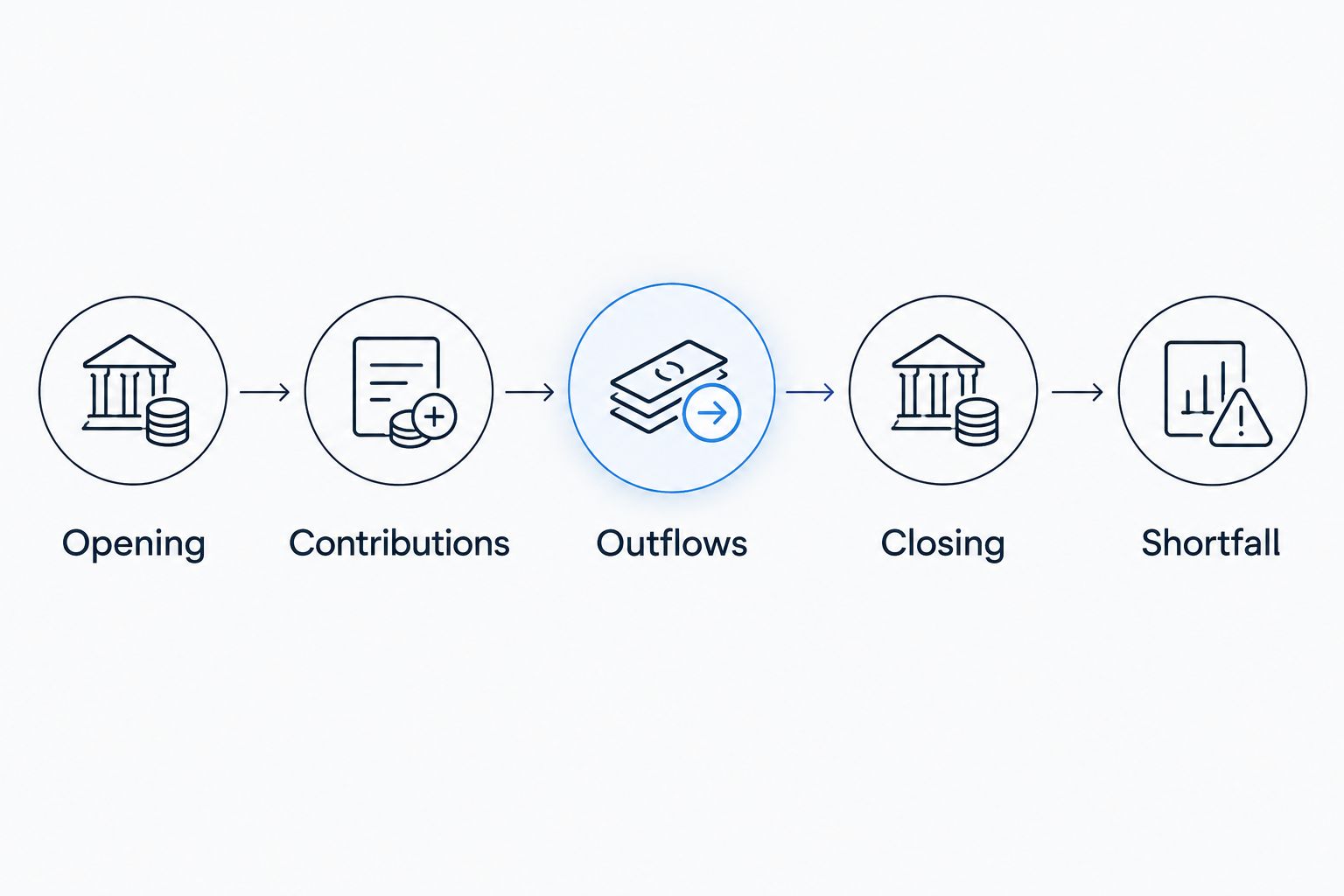
- Create a worksheet named Funding with these columns, in this order: Period, Opening, Contributions, Outflows, Closing, Minimum, Shortfall, and Status. Keep these exact positions for the cell references below.
- Enter
2026in cell A2 when 2026 is your approved starting period. Enter=A2+1in A3 and fill downward to the end of your approved forecast horizon. Do not extend the horizon simply to make later balances look stronger. - Enter the verified opening reserve balance in B2. In B3, enter
=E2and fill downward. Each period must begin with the preceding period's closing balance, including any negative balance. - Enter approved contributions in column C and the required closing reserve floor in column F. Use an explicit numeric
0when the approved floor is zero; a blank should not stand in for a funding decision. - In D2, enter
=SUMIFS(Needs[ApprovedAmount],Needs[DueYear],A2). In E2, enter=B2+C2-D2. In G2, enter=MAX(0,F2-E2). Fill each formula down through the funding horizon.
Expected result: Each period shows approved expenditure, projected closing reserves, and the amount needed to restore the specified minimum. A shortfall is a funding requirement, not an additional repair expense.
The model assumes contributions and outflows belong to the period entered. It does not determine restricted-cash eligibility, lender approval, or whether contributions arrive before expenditures.
Exception flags and validation
A green funding result is misleading when unresolved findings have been excluded. Make data quality a separate gate before declaring the schedule funded.
- In H2, enter
=IF(COUNTIF(Needs[Status],"<>Approved")>0,"REVIEW INPUTS",IF(G2>0,"SHORTFALL","FUNDED"))and fill downward. This deliberately conservative rule blocks every period's funded status while any register item remains unapproved. - Select the populated Status cells. Choose Home > Conditional Formatting > Highlight Cells Rules > Text that Contains. Create separate rules for SHORTFALL, REVIEW INPUTS, and FUNDED. Keep the written labels visible; color alone is insufficient.
- Under Formulas > Calculation Options, select Automatic. Change an approved expenditure in a test copy and confirm the relevant outflow, closing balance, shortfall, and status recalculate.
- Test the boundary conditions. A closing balance equal to the minimum should show a shortfall of
0. A closing balance below the minimum should show a positive shortfall. A pending item should produce REVIEW INPUTS, regardless of the calculated balance. - Check completeness separately: every included item needs an ID, a numeric amount, an approved period, and a source reference. Confirm no approved year falls outside the funding horizon. The status formula cannot detect an expenditure that was never entered.
Expected result: The workbook distinguishes a funding deficit from incomplete review. It flags approved-data shortfalls automatically without treating unresolved findings as evidence of adequate reserves.
For the 2026 baseline, save an approved copy before changing assumptions. Record who authorized each material change and which source supports it. An alert without a reproducible baseline is difficult to defend during underwriting review.
Updated-report workflow
Use the same workbook when a revised PCA changes replacement timing, scope, or cost. Update the existing ItemID rather than appending a duplicate expenditure.
- Save the revised report separately and record its revision date with the affected source references. Preserve the earlier workbook as the prior approved baseline.
- Match revised findings to existing IDs. Update the affected amount or due year, change Status to Pending, and document the reason for the revision outside the calculation columns.
- Have the authorized reviewer approve the changed entry. Confirm the expenditure moves to the correct period and the funding status recalculates.
- Compare the revised schedule with the baseline. Identify whether the shortfall changed because of scope, expenditure timing, contributions, or the reserve minimum.
Expected result: Revised findings change the forecast without duplicating obligations. This variant automates recalculation after reviewed edits; it does not monitor report folders or send notifications.
Annual versus monthly funding periods
Choose the period that matches the decision. These are modeling options, not different PCA services.
| Approach | Best for | Advantage | Limitation |
|---|---|---|---|
| Annual schedule | Early underwriting using year-level replacement timing | Maps directly to a year-based capital schedule | Can conceal a deficit before contributions arrive |
| Monthly schedule | Cash planning when payment and funding dates are supported | Exposes funding gaps within the year | Requires defensible dates and more maintenance |
An annual period covers 12 months. If a 2026 repair is payable before the planned contribution, investigate the intervening cash position rather than accepting the year-end result.
For monthly modeling, replace DueYear with an actual DueDate and use period start and end dates. Sum approved expenditures within each period using date criteria. Do not simply divide an annual expenditure evenly across months unless the approved payment schedule supports that treatment.
Troubleshooting
The schedule says FUNDED despite unresolved findings
Check whether every Needs row uses the agreed approval labels. An incorrect Approved entry bypasses the review gate. Reconcile the register to the report and return unresolved entries to Pending; the workbook cannot judge approval quality.
Shortfalls disappear after an update
Check Calculation Options and confirm calculation remains Automatic. Inspect copied formulas, numeric input types, and the updated item's year. An approved amount outside the modeled horizon will not appear in the displayed outflows.
Capital needs appear twice
Search for repeated ItemID values and compare the underlying scope. A revised report entry usually replaces the previous assumption; it does not create another obligation. Also inspect overlapping summary and detailed schedule entries before removing anything.
The annual model is funded but cash is insufficient
Compare expenditure dates with contribution dates and account restrictions. Switch to monthly periods where supported, and keep restricted balances separate from usable funds. An annual closing balance does not establish payment-date liquidity.
The shortfall total looks larger than the funding need
Do not sum the Shortfall column across periods. A deficit carried into later opening balances can appear repeatedly. Model the timing of an authorized contribution explicitly, then recalculate the remaining requirement without counting the same deficit again.
Customize your workflow
Expand the model only after the single-property calculation reconciles. For a portfolio, add property identifiers and maintain separate opening balances, contribution schedules, and reserve restrictions. Aggregate approved outputs only after property-level checks pass.
Keep underwriting adjustments distinct from report findings. If the investment committee changes timing or adds a contingency, preserve the source amount and record the adjustment separately. Otherwise, later reviewers cannot tell whether the assessor or the buyer changed the assumption.
Use the PCA findings-to-capex reserve budget workflow to connect the exception register with budget decisions. Candjpropertyassessments provides commercial PCA services; your designated decision-makers approve reserve policy and funding responses.
FAQ
How do I automatically flag capital reserve shortfalls from a PCA report?
Enter reviewed PCA expenditures into a structured register and compare period-by-period reserve balances with an approved minimum. Excel formulas can recalculate shortfalls after inputs change, but report extraction and approval remain separate controls.
Does a PCA report tell me whether my reserves are sufficient?
A PCA alone does not establish reserve sufficiency. You must compare its applicable capital needs with usable opening reserves, approved contributions, timing, and the required reserve floor.
Can I use this workflow with a Candjpropertyassessments report?
You can apply this workbook method to reviewed findings from a Candjpropertyassessments commercial PCA. Enter the applicable findings and source references; this guide does not describe a provider-supplied software integration.
Should I use annual or monthly reserve calculations?
Use annual calculations for year-level planning and monthly calculations when supported payment dates require closer cash tracking. A positive annual closing balance can conceal an earlier funding gap.
What happens when a revised PCA changes a replacement year?
Update the existing expenditure row, return it to Pending, and obtain approval before treating the revision as funded. Preserve the previous baseline so reviewers can trace the change.
Should I add together every annual shortfall?
Do not add every annual shortfall together. A carried-forward deficit can recur in successive periods, so model contributions at their actual scheduled timing and recalculate.
What should I check before approving the 2026 reserve forecast?
Reconcile included expenditures to the source report and verify opening reserves, contributions, reserve restrictions, and the minimum balance. Confirm that unresolved findings remain visible and that payment timing supports the funding conclusion.
One last thing
A shortfall flag is a decision trigger, not a recommendation to defer the work. Resolve the funding source, transaction allocation, or approved scope before changing the model to remove the warning. Preserve the original finding and the reason for every adjustment.